

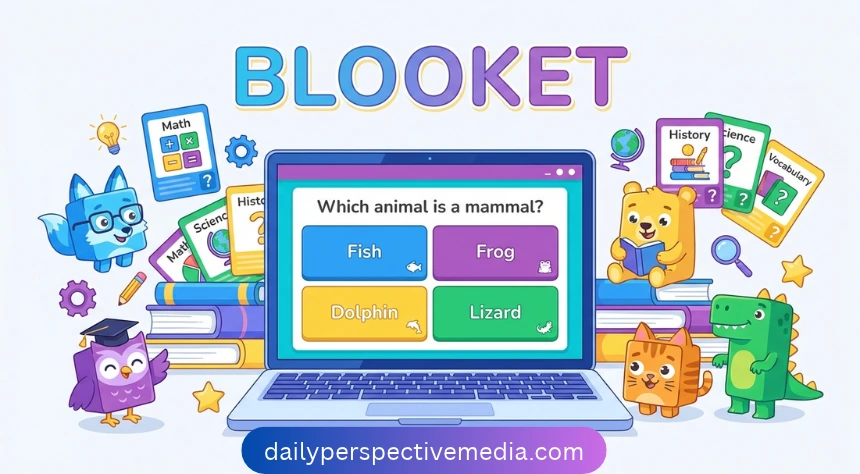
Blooket is a learning website that combines quiz questions with interactive games, and its official site credits Ben Stewart as its creator. A question set contains the material students need to practise, while a game mode decides how they play and use their answers. In a live session, the teacher selects the questions and mode, then students join on their own devices and choose a character called a Blook before the game begins.
For a simple example, imagine a teacher who has just taught ten new English words and turns them into a short review game. Students answer questions about those words, and the teacher checks the results afterwards to decide what needs another explanation. The same platform also supports solo practice and assigned homework through compatible modes, so it can be used beyond a live classroom session; a useful next step is to discuss mistakes and practise the ideas that students found difficult.
How Do You Sign Up, Log In, and Join Blooket?
Teachers can create a free Blooket account by choosing Sign Up, selecting their account type, and following the registration steps with Google or email. Email registration includes receiving a verification code, choosing a password, and selecting an available username, so use an address that can receive messages. After signing in, explore the dashboard to find question sets and account controls; if you forget your password, use the recovery option, and remember that usernames are case sensitive.
Students do not need an account to join a live game: open the official joining page and enter the Game ID shown by the teacher, or use the teacher’s QR code or shared invitation. Next, enter a nickname if requested, choose a Blook, and wait for the host to start; a teacher may enable randomly assigned names instead. Use an internet-connected device with a suitable browser, copy the current code carefully, and ask the host about access if the game has already started, since late joining depends on its settings.
How Do You Create Questions and Host a Blooket Game?
Start with Discover to find a ready-made set, or choose Create to build questions around your lesson, adding a clear title and description before saving the questions and correct answers. Public sets can appear in searches, while private sets stay visible only to their creator and can still be used to host games; Blooket also documents imports from Quizlet and spreadsheets. Before teaching with any set, read every question, check the answers, and remove confusing wording so students practise the material you intended.
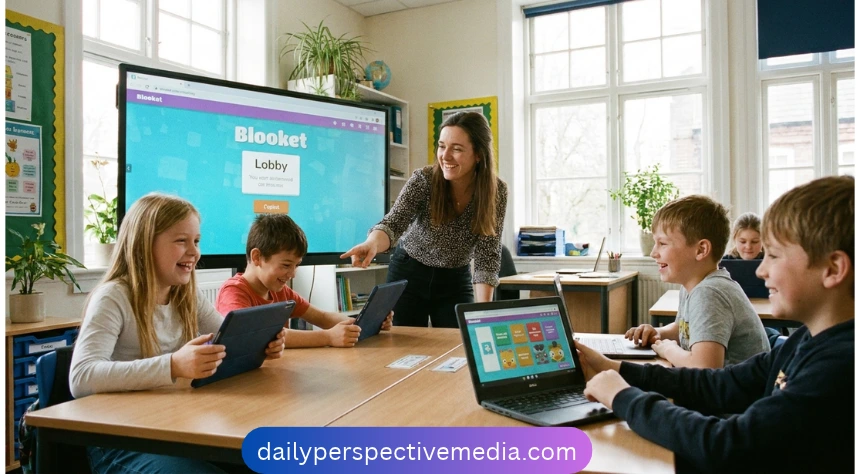
To host, open the chosen set, select Host, pick a live game mode, adjust its settings, and choose Host Now to open the lobby. Depending on the mode, review time or score goals, question order, answer feedback, random names, and late joining, then share the game access with your intended players. Check that everyone is ready before selecting Start, explain the basic rules first, and finish by reviewing the report; for a first attempt, a short set on one familiar topic keeps preparation and follow-up manageable.
Which Blooket Game Modes and Rewards Should You Know?
Blooket game modes change how students use the same questions, so choosing a format is part of planning the lesson. Classic centres on answering questions for points, while other modes add activities such as running a café or building defences. The quick comparison below shows five options from Blooket’s official mode guide, but the activity available to a student also depends on whether the teacher is hosting live or assigning homework.
| Blooket mode | Main activity | Supported formats |
|---|---|---|
| Classic | Answer questions to earn points | Live |
| Gold Quest | Collect gold, with opportunities to take gold from others | Live |
| Café | Answer questions to restock food and serve customers | Live, solo, homework |
| Tower Defense | Answer questions and build a defence against enemies | Live, solo, homework |
| Crazy Kingdom | Respond to visitors and manage kingdom resources | Solo, homework |
Blooks are the characters players collect and use, while tokens and experience points, often called XP, support account progression after games. Earned tokens can be used in the Market to unlock Blooks and other items, and different packs show their available characters and drop rates. These rewards can give players something to work towards, but a rare character or high game score does not establish subject knowledge; reading carefully, understanding the rules, and reviewing incorrect answers remain useful habits.
How Can Teachers and Students Use Blooket for Learning?
A useful Blooket lesson starts with a clear learning goal, such as recognising fractions, remembering vocabulary, or reviewing a science topic. As an illustrative classroom example, a teacher could review ten words, run a short game, then ask students to explain two difficult answers in their own words. Afterwards, review accuracy and discuss mistakes, using question-level and detailed individual reports where the plan supports them; this follow-up helps connect the activity with the lesson and gives the teacher more useful information than finishing positions alone.
Blooket homework provides practice outside a live session: select a question set, choose Assign or Assign HW, set the due date, select allowed modes, and choose a completion goal before sharing the assignment. The Correct Answers goal counts only correct responses, while the Questions goal counts every response, so choose the option that matches the purpose and avoid setting more repetition than students need. Students open the homework invitation or scan its QR code, choose an allowed mode, and work towards the goal before it closes; if access details go missing, ask the teacher to share them again.
Is Blooket Free, and Is Blooket Plus Worth It?
Blooket’s Starter plan is free, and its official help explains that users can create unlimited question sets and use the essential classroom features without a paid subscription. That makes it a practical starting point for a teacher who wants to try a review activity before deciding whether additional features would help. The comparison below reflects official help checked on 5 November 2026, with Plus adding features such as more detailed reports, additional modes, and longer homework deadlines.
| Feature | Free Starter plan | Blooket Plus |
|---|---|---|
| Live player limit | Up to 60 | Up to 300, depending on mode |
| Maximum homework deadline | 14 days ahead | 365 days ahead |
| Reporting | Basic game results | Detailed question and student reports |
| Game modes | Starter modes | Starter and additional Plus modes |
| Folders for question sets | Not included | Included |
Some games, including Racing and team formats, have different player limits, so check the selected mode before planning a large session. Plus is most useful when its extra features solve a regular teaching need; to see the current price, open Settings, then Plan, and review the upgrade options and billing period before subscribing. When comparing Blooket with Kahoot or Gimkit, try the same lesson questions and consider preparation time, reading demands, useful feedback, and how comfortably your students can participate.
Blooket Safety, Troubleshooting, and Common Questions
Account creation and joining as a guest are different, which matters when teachers are working with younger students. Blooket’s sign-up guide states a minimum age of thirteen for creating an account, while its privacy policy explains consent arrangements for children and schools, so adults should follow the current registration requirements and their school’s process. Use a suitable nickname, keep passwords private, and check question-set visibility before sharing; guest participation also involves information such as responses and technical data, so it should not be described as collecting no information.
If Blooket is not working, start with the problem you can identify: confirm the host’s current code, check whether the game or homework is still open, and make sure the device has a working internet connection. For login trouble, check the exact username and use password recovery when needed, then try an updated browser and check whether an extension is interfering with the page. If a school network blocks a required service or images remain missing, ask the school administrator or Blooket support for help, explaining which device and browser you used and what happened.
Conclusion: Getting Started With Blooket
Blooket gives teachers and students several ways to practise familiar material, from a shared classroom game to an assignment completed at home. A small question set, clear instructions, and a mode that suits the group make a sensible first activity. The most useful follow-up is to look at the answers and explain anything students found difficult.
For teachers, the next step is to prepare one short review and check its questions before hosting. For students, it is to follow the teacher’s joining instructions and take time to understand each answer. Keep the learning goal clear, and let the game support the practice.
Blooket FAQs
Is Blooket free? Yes. Its Starter plan includes essential features, including question sets and live games for classroom review activities.
Do students need accounts? No. Students can join a teacher’s live game using the Game ID, QR code, or link.
Can you play Blooket alone? Yes. Supported solo modes let registered users practise questions independently, without joining a hosted game.
Does Blooket work offline? No. Blooket needs an internet connection to load questions, support gameplay, and communicate with its services.
How many players can join? Starter supports up to sixty players; Plus supports up to three hundred, with mode exceptions.